
Genshin Impact Mac Download Methods
Explore the safest ways to download Genshin Impact on Mac, using trusted launchers and cloud gaming for stable performance in 2026.
If you're trying to figure out how to download Genshin Impact on Mac, here's the honest situation in 2026: there is still no official macOS client from HoYoverse. Genshin Impact officially supports Windows, PlayStation, Xbox, Android, and iOS, but Mac is still missing from that list. Even so, plenty of players are already running the game on Mac hardware through community launchers, cloud streaming, and a few Windows compatibility workarounds. This guide breaks down the routes that actually work, so you can pick the safest option and get into Teyvat without wasting time.
How to Download Genshin Impact on Mac
As of mid-2026, HoYoverse still has not released a standalone Mac version of Genshin Impact. If you check the official download page at genshin.hoyoverse.com, you'll only see Windows, iOS, Android, PS4, PS5, and Xbox Series X/S listed. So if you're searching for how to download Genshin Impact on Mac through official means, there simply isn't a direct Mac installer to grab.
That leaves you with a few realistic options: a community-maintained launcher, a cloud gaming service, or a Windows compatibility layer. For most players, those are the only safe and functional ways to play on macOS right now.
Before you install anything, make sure you're downloading from trusted sources only. Stick to the official HoYoverse site, the YAAGL GitHub repository, or established cloud platforms like GeForce NOW. Random third-party download pages are absolutely not worth the risk, especially when account theft and malware are both common problems in this space.
A quick prep checklist helps too:
-
Enable two-factor authentication on your HoYoverse account
-
Make sure your login details are ready before setup
-
Confirm you have enough free storage for the full game download
-
Double-check whether your Mac is Apple Silicon or Intel
Genshin Impact on Mac Compatibility
Not every Mac handles Genshin Impact the same way, and honestly, your hardware matters a lot here. The method you choose affects not just whether the game launches, but also how stable it feels, what settings you can run, and whether 60 FPS is realistic.
| Mac Configuration | Chip | Recommended Method | Expected Performance |
|---|---|---|---|
| MacBook Pro / Mac Studio (2021–2026) | Apple M1 / M2 / M3 / M4 | YAAGL launcher | 1080p Medium–High, 60 FPS stable |
| MacBook Air (M1/M2) | Apple Silicon | YAAGL or Cloud | 1080p Medium, 45–60 FPS |
| iMac / Mac mini (M-series) | Apple M2 / M3 / M4 | YAAGL launcher | 1080p High, 60 FPS stable |
| MacBook Pro (2018–2020) | Intel Core i7/i9 | CrossOver or Cloud | 720p–1080p Low–Medium, 30–45 FPS |
| MacBook Air (Intel) | Intel Core i5 | Cloud gaming only | Dependent on internet quality |
Apple Silicon Macs get the best results with YAAGL because its Wine-based layer translates DirectX calls into Metal far more efficiently than older Intel systems can manage. In practice, M-series Macs are just way better suited for local Genshin play.
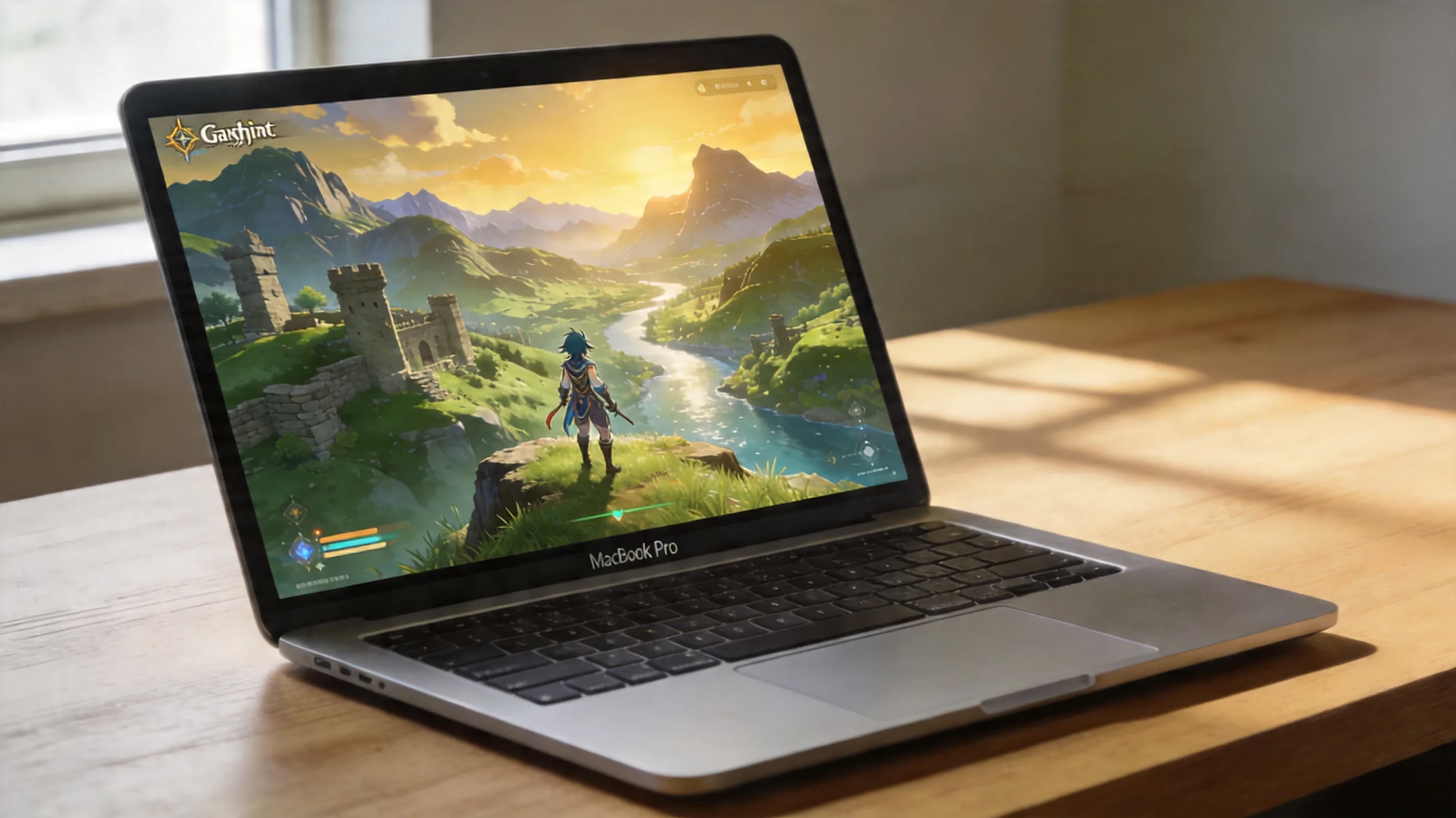
For software requirements, macOS 12 Monterey is the minimum you should consider for YAAGL. macOS 13 Ventura or newer is the safer target, especially if you want proper controller support for devices like the PS5 DualSense or Xbox Wireless Controller.
You'll also want enough room for the game itself. Genshin Impact has grown a lot with the Version 6.x updates, so having at least 80–100 GB of free space is the practical baseline. As for memory, 8 GB RAM is the minimum, but 16 GB is strongly recommended if you want smoother sessions and fewer slowdowns while other apps are open.
Genshin Impact Mac Installation Methods
YAAGL Mac Install
For most Mac players, YAAGL is the main answer to how to download Genshin Impact on Mac locally. YAAGL, short for Yet Another Anime Game Launcher, is a free open-source launcher hosted on GitHub. It uses a Wine-based compatibility layer to run Windows-only anime games, including Genshin Impact, on macOS. At this point, it's basically the closest thing Mac users have to a native-style client.
As of 2026, YAAGL has passed 50,000 downloads and holds a 4.9-star community rating. That doesn't make it official, of course, but it does show how widely used and actively maintained it is.
The setup process is pretty straightforward:
-
Go to the official YAAGL GitHub repository.
-
Download the latest release for your Mac type, either Apple Silicon or Intel.
-
Open the downloaded
.dmgfile. -
Drag YAAGL into your Applications folder.
-
Launch the app.
On first boot, macOS may throw an "unidentified developer" warning. If that happens, right-click the app and choose Open, or go to System Settings → Privacy & Security → General and hit Open Anyway. That's usually enough to get past Gatekeeper.
Once YAAGL is running, choose Genshin Impact from the launcher, sign in with your HoYoverse account, and let it handle the game download and setup. The first install can take a while depending on your connection, but after that, YAAGL manages patches automatically. That's a huge quality-of-life win, especially when new HoYoverse updates drop.
Cloud Gaming Route
If you don't want to install anything locally, or your Mac just isn't strong enough for a stable YAAGL setup, cloud gaming is the easiest route. In a lot of cases, it's also the fastest way to start playing.
GeForce NOW is the best-known option here. Nvidia's service supports Genshin Impact streaming at up to 1440p and 120 FPS on Ultimate tier servers, and there's also a free tier if you just want to test performance first. You can use it through the native macOS app or through a supported browser, though the app usually feels better thanks to lower input delay and more stable bitrate handling.
The catch is your internet connection. For a solid 1080p/60 FPS experience, you'll want around 15–25 Mbps at minimum, plus low jitter. Wired Ethernet is strongly recommended if you care about consistency.
Xbox Cloud Gaming is another workable option if you already have Xbox Game Pass Ultimate. It offers native Genshin Impact access on Mac through either the Xbox app or a browser, with streaming up to 1080p/60 FPS. Your progression, Primogems, and roster stay tied to your HoYoverse account, so syncing across platforms is seamless.
Still, cloud gaming always comes with one obvious tradeoff: latency. Even on a strong connection, you're usually dealing with an extra 30–80ms of input lag. That's manageable for casual exploration and daily commissions, but you'll definitely notice it in Spiral Abyss runs or tighter elemental reaction setups.
Windows Workaround Route
If you're on an Intel Mac, or you just want an alternative to YAAGL, there are still a couple of Windows-based workarounds worth knowing about.
One of the biggest is CrossOver from CodeWeavers. It's a paid compatibility tool built on Wine, and it lets you run the official Windows version of Genshin Impact on macOS. Compared to manually configuring Wine, CrossOver is much cleaner and easier to work with, which is why some players prefer it.
That said, patch stability can be inconsistent. HoYoverse's anti-cheat system, mhyprot2, has a habit of breaking compatibility after certain updates, and that can lead to crashes or outright launch failures. If you're going this route, it's smart to check the CrossOver compatibility database and community reports before every major patch.
Boot Camp used to be the cleanest option for Intel Macs because it let you dual-boot into Windows 10 or 11 and run the official client with no compatibility layer at all. The problem is that Boot Camp is gone on Apple Silicon, and Apple has already ended support for it as an active path forward. If you already have a working Intel Boot Camp setup, you can still use it. For new Mac users in 2026, though, it's basically not a realistic recommendation anymore.
For both CrossOver and YAAGL installs, it's a good idea to keep an eye on the YAAGL GitHub issues page and the Genshin Impact subreddit after every major HoYoverse version release. Patch-to-patch behavior can shift more than you'd expect.
Genshin Impact Mac Performance Settings
Once the game is running, getting the right settings matters a lot. Mac hardware can deliver surprisingly solid performance, but thermals, unified memory, and battery limits all play a role.
For M2 and M3 Macs, a Medium to High preset at 1080p is usually the sweet spot, with 60 FPS being stable in most open-world zones. Heavier areas like Natlan or the later Snezhnaya regions can still cause dips, especially when effects stack up during combat. On M4 systems, High or even Very High at 1080p is much more realistic without major throttling.
A few settings are worth adjusting right away:
-
Set render resolution to 1.0 or 0.9 for a better performance-to-clarity balance
-
Lower crowd density to Medium
-
Drop reflections to Medium
-
Cap FPS to 45 on MacBooks if heat or battery drain becomes a problem
Crowd density and reflections are usually the easiest settings to lower because they cost a lot of performance without changing the actual gameplay experience much. That's especially true if your goal is smoother combat rather than prettier city scenes.
Input support is also in a pretty good place. YAAGL handles keyboard and mouse natively, and Bluetooth controllers like the PS5 DualSense and Xbox Wireless Controller work properly on macOS 13 and newer without extra drivers.

Genshin Impact Mac Problems and Fixes
A few issues show up often enough that it's worth knowing the fixes ahead of time. Most of them are annoying, but thankfully not that hard to deal with.
If YAAGL suddenly stops opening after a macOS security update, the usual cause is revoked permissions. Go back to System Settings → Privacy & Security and re-authorize the app. macOS sometimes resets that access after system-level changes.
If the launcher opens but Genshin gets stuck at login, anti-cheat initialization is often the culprit. In that case, clearing the cache at ~/Library/Application Support/YAAGL and then relaunching usually fixes it.
For download stalls or endless verify-repair loops, the most common causes are:
-
Not enough free disk space
-
Unstable DNS resolution
-
Interrupted network connection during file checks
Freeing up more storage helps more often than people expect. If that doesn't do it, switching to a public DNS like 1.1.1.1 or 8.8.8.8 solves a lot of stuck download cases.
If the game crashes on launch or sits on a black screen after the HoYoverse logo, first confirm that your Mac is running macOS 12.0 or later and that YAAGL is fully updated. A lot of launch issues come down to outdated builds or unsupported system versions.
Stutter during combat is a different problem from low average FPS, and on Mac it often points to background apps eating into unified memory. Closing browser tabs, chat apps, and cloud sync tools before launching the game can make a surprisingly noticeable difference.
Conclusion
For most players, YAAGL is still the best way to download and play Genshin Impact on Mac in 2026, especially if you're using any M-series Mac. It offers the smoothest local setup, handles updates for you, and has become the go-to option for the Mac Genshin community.
If you're on older Intel hardware, or you just don't want to deal with local installs at all, GeForce NOW is the easiest fallback and still delivers a very solid experience. CrossOver remains a valid paid alternative for players who prefer a more polished compatibility tool, though you'll need to keep an eye on patch stability. Pick the method that matches your Mac, stick to verified download sources, and you'll have a much smoother time getting into Teyvat.
Comments